AWS Support
How to Log a Support Case
Overview
Ingram Micro’s AWS Partner-Led Technical Support Team provides reactive (break/fix) support in collaboration with Amazon Web Services.
Our users can log support cases directly through the Ingram Micro Storefront portal.
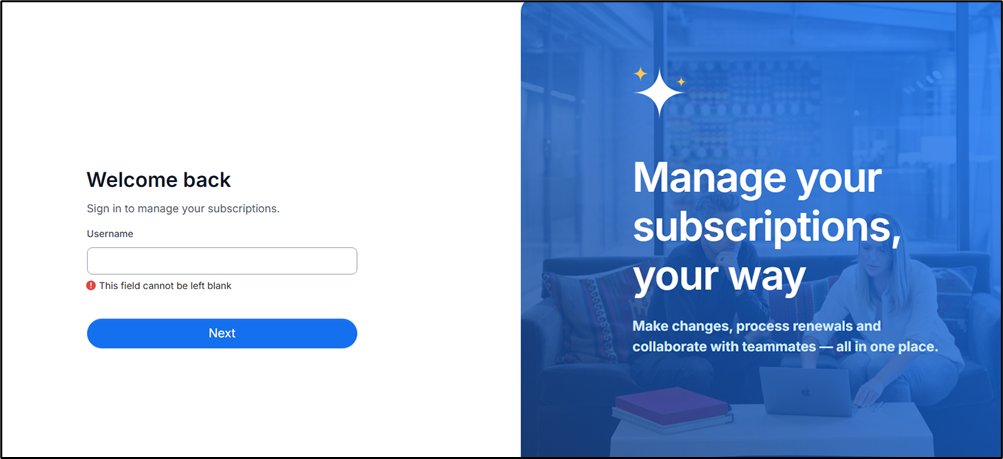
Sign in to Storefront
Log in to Storefront using your credentials.
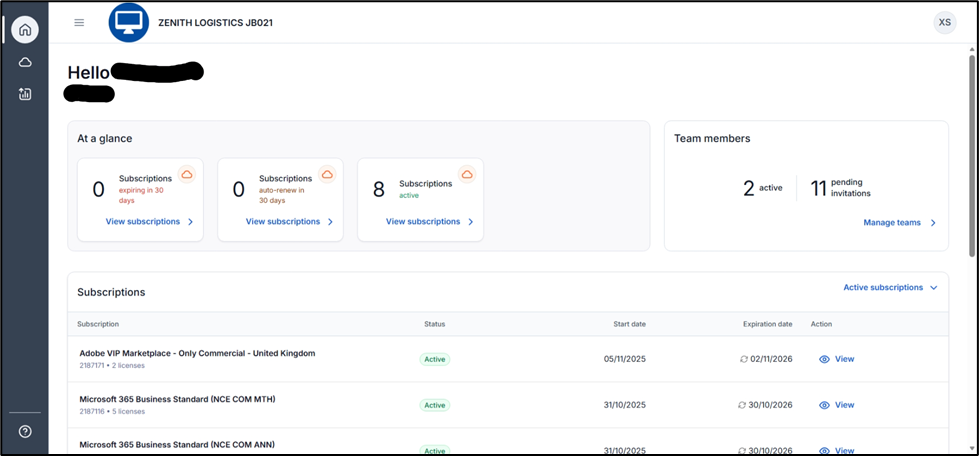
Home Page
After logging in, you will be redirected to the Home Page, In the bottom-left corner, click the Support icon to access support options.
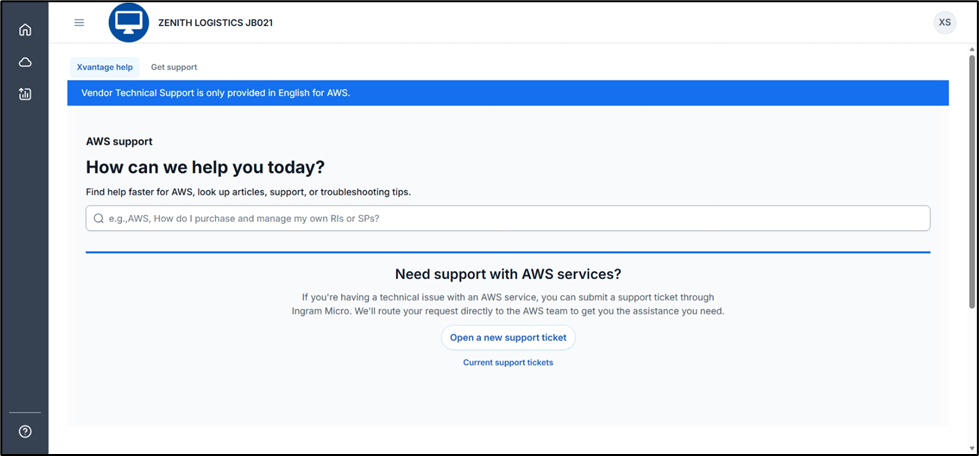
KB Articles
After clicking the Support button, you will be redirected to the Knowledge Base (KB) Article Page. Here, you can search for articles related to your issue.
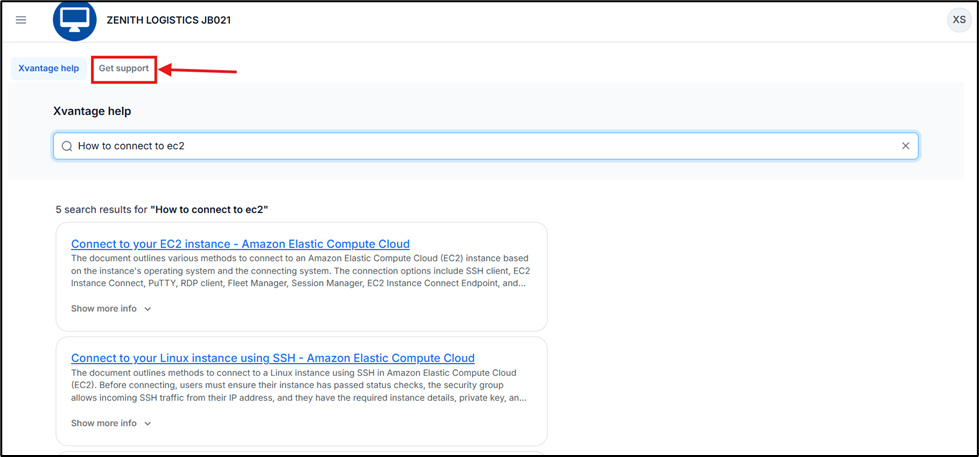
Get Support Button
If the KB articles do not resolve your issue, or if you prefer to raise a ticket, click the Get support button to open the Support Form.
Support Form
The Support Form will open where you can submit a new support case.
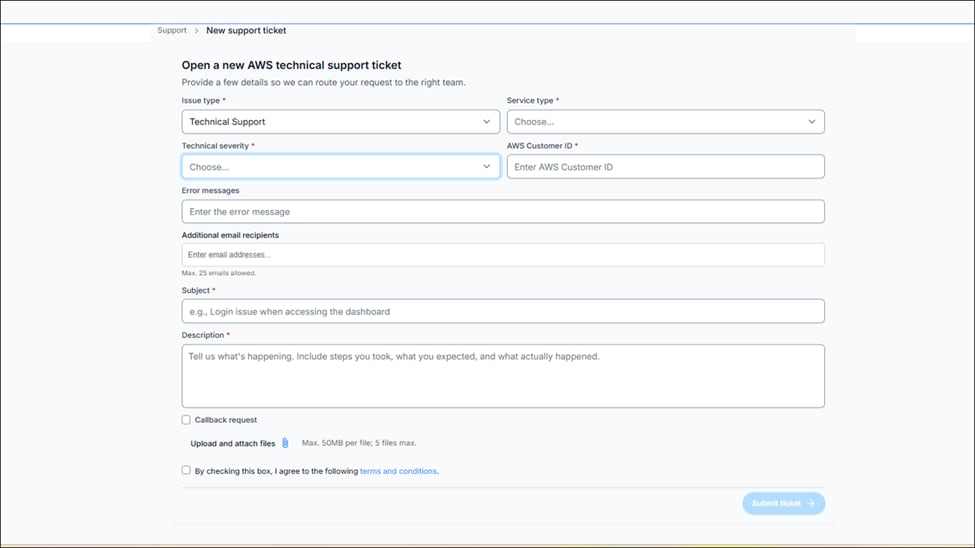
Please select the correct issue type from the dropdown menu. You can log issues related to:
Complete the Ticket Form, provide the required information in the form and click on the Submit ticket button.
Account & Billing
- Select the Issue Type: Account & Billing.
- Enter your Ingram Micro Account Number (BCN).
- Select the issue's Severity (Urgent, High, Normal, Low).
- Please select your account's Country.
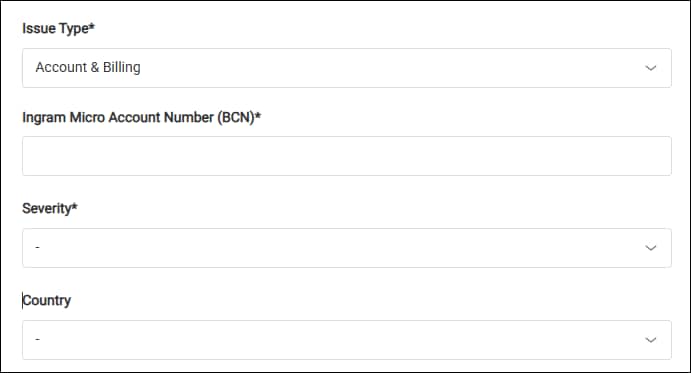
- Select the Callback Request box and enter your Preferred Contact Number if you want to receive a call from Ingram Micro Support.
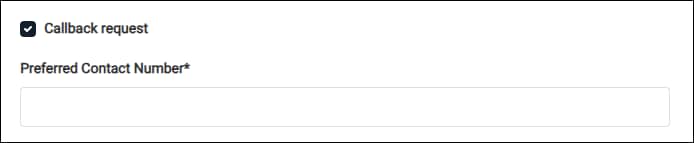
- Please include detailed information about the issue you are encountering in the Description field.
- Please include all error messages or logs you've encountered in the Error Messages field.
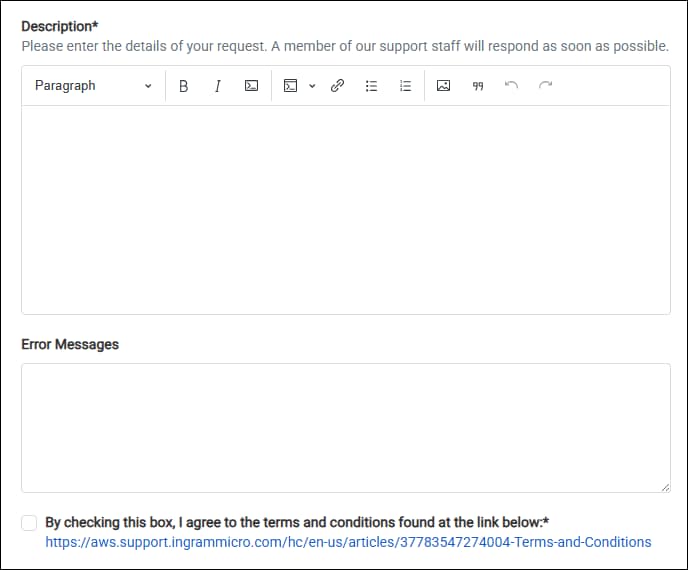
- Select the box to accept the terms and conditions.
- Drag and drop the files you want Ingram Micro to review into the Attachments field to help with troubleshooting.
- Click Submit ticket.
Account Creation Request
- Select the Issue Type: Account Creation Request.

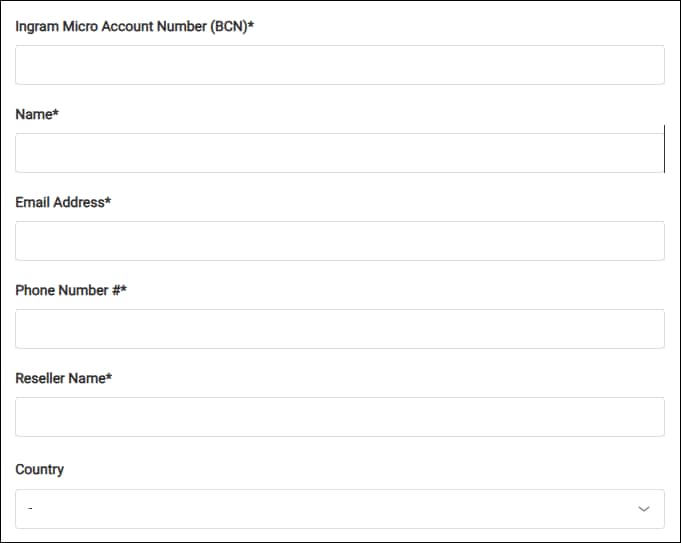
- Please enter your Ingram Micro Account Number (BCN).
- Enter your name.
- Please provide your Email Address.
- Enter your Phone Number.
- Please enter the Reseller's Name.
- Please select the account's Country.
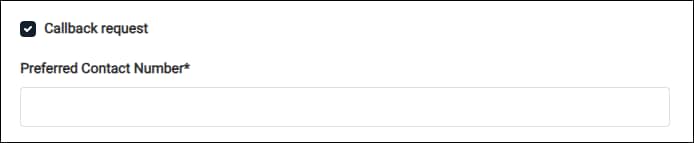
- Select the Callback Request box and enter your Preferred Contact Number if you want to receive a call from Ingram Micro Support.
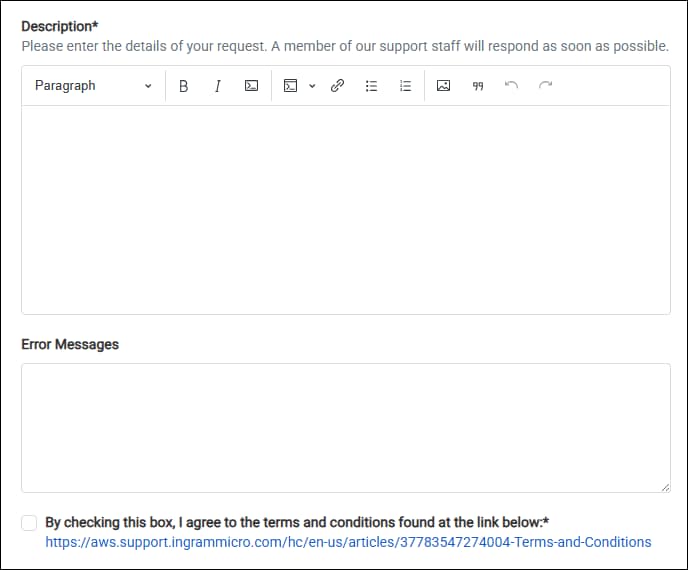
- Please include detailed information about your request in the Description field.
- Please include all error messages or logs you've encountered in the Error Messages field.
- Select the box to accept the terms and conditions.
- Drag and drop the files you want Ingram Micro to review into the Attachments field.
- Click Submit ticket.
Technical Support
- Select the Issue Type: Technical Support.

- Select which product or service is affected by the technical issue.

- Choose the impact of the issue from the Technical Severity dropdown menu. Please refer to the Technical Severity Levels table for guidance.

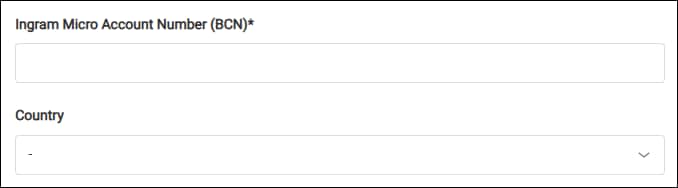
- Please enter your Ingram Micro Account Number (BCN).
- Please select your account's Country.
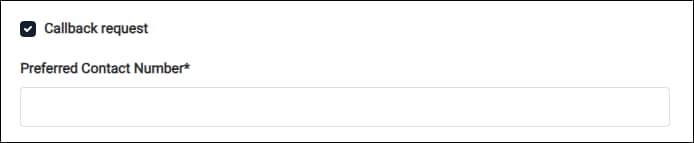
- Select the Callback Request box and enter your Preferred Contact Number if you want to receive a call from Ingram Micro Support.
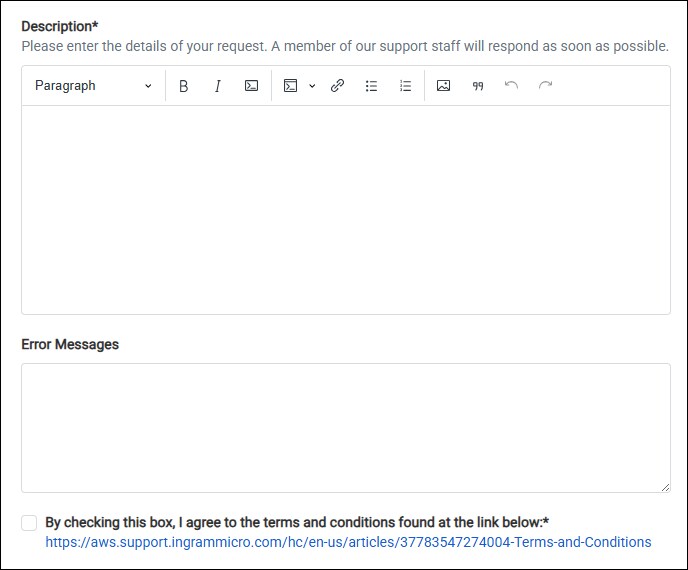
- Please include detailed information about the issue you are encountering in the Description field.
- Please include all error messages or logs you've encountered in the Error Messages field.
- Select the box to accept the terms and conditions.
- Drag and drop the files you want Ingram Micro to review into the Attachments field to help with troubleshooting.
- Click Submit ticket.
Submit confirmation
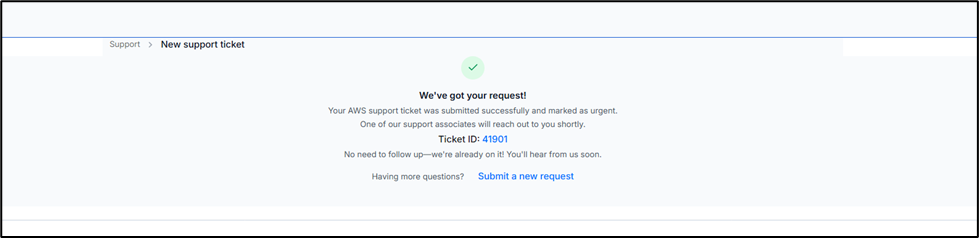
After successfully submitting your ticket, a confirmation screen will appear noting your Ticket ID for your reference and tracking
Technical Severity Levels
| Severity | Severity Level code | First-Response Time | Description and Support Plan |
|---|---|---|---|
| General Guidance | Low | 24 hours | You have a general development question, or you want to request a feature. (*Developer, Business, Enterprise On-Ramp, or Enterprise Support Plan) |
| System Impaired | Normal | 12 hours | Non-critical functions of your application are behaving abnormally, or you have a time-sensitive development question. (*Developer, Business, Enterprise On-Ramp, or Enterprise Support Plan) |
| Production System Impaired | High | 4 hours | Essential functions of your application are impaired or degraded. (Business, Enterprise On-Ramp, or Enterprise Support Plan) |
| Production System Down | Urgent | 1 hour | Your business is significantly impacted. Essential functions of your application aren't available. (Business, Enterprise On-Ramp, or Enterprise Support Plan) |
| Business-Critical System Down | Critical | 15 minutes | Your business is at risk. Critical functions of your application aren't available (Enterprise Support Plan). Note that this is 30 minutes for the Enterprise On-Ramp Support Plan. |
